February 12th, 2025
New
For Teachers
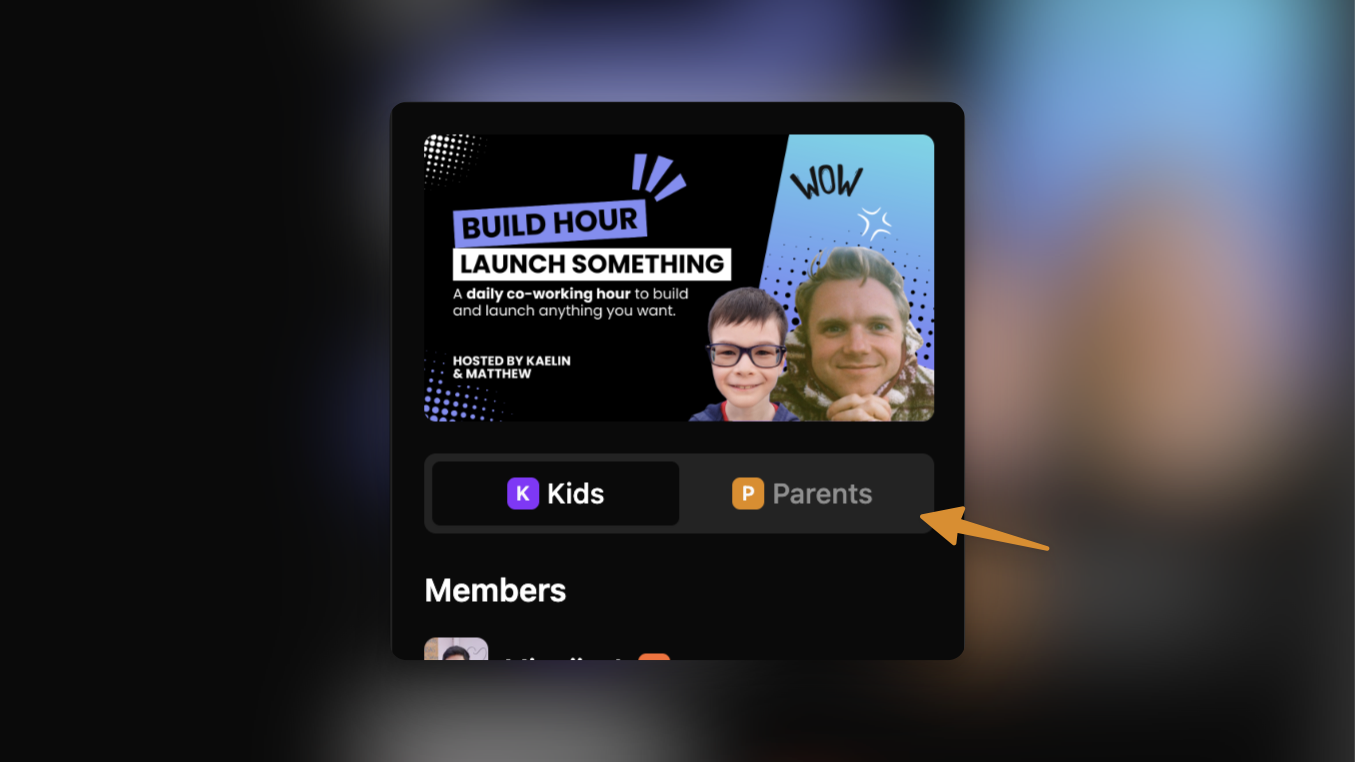
You can now chat with all parents in each of your cohorts!
There’s now a new toggle on the right sidebar of your cohort channels, where you can switch from chatting with kids to chatting with parents. All parents of a registered kid will automatically be added to the parent channels on registration.
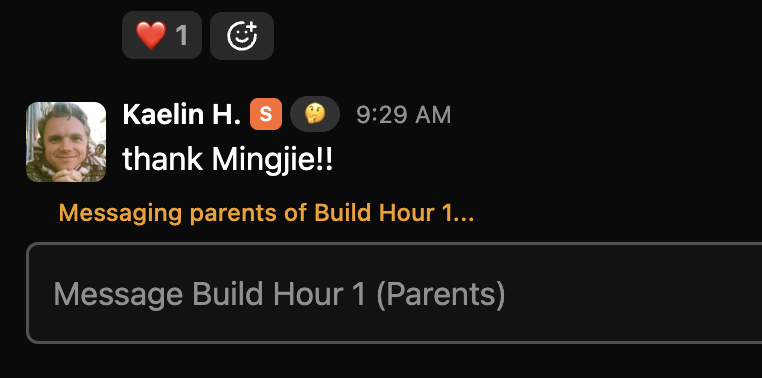
When messaging parents, you’ll see this hint that confirms that you are sending this to all parents.
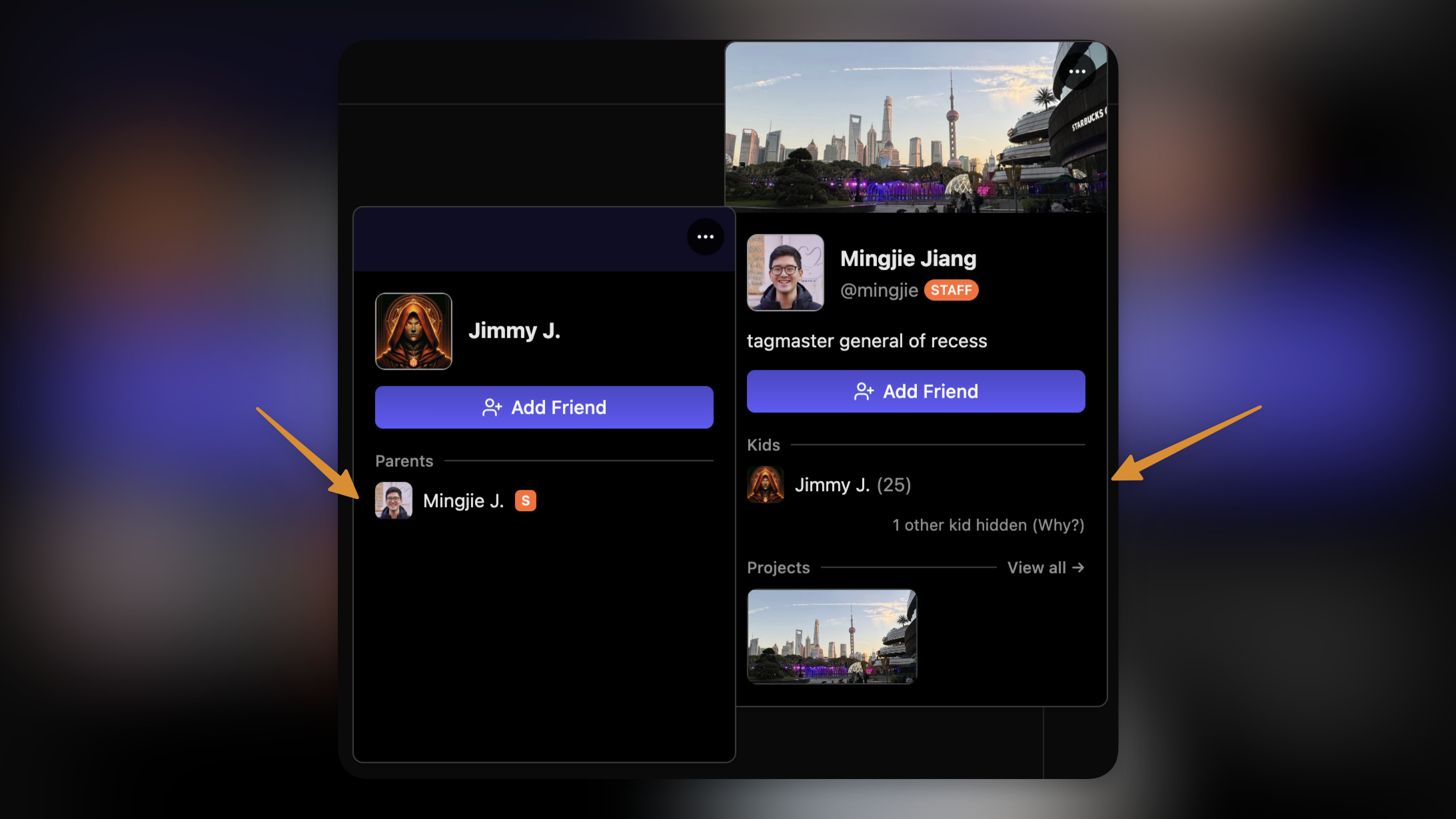
We’ve also improved the profile popover experience. For users you already have relationships with, you can now see the user’s family members directly from a user’s profile popover.
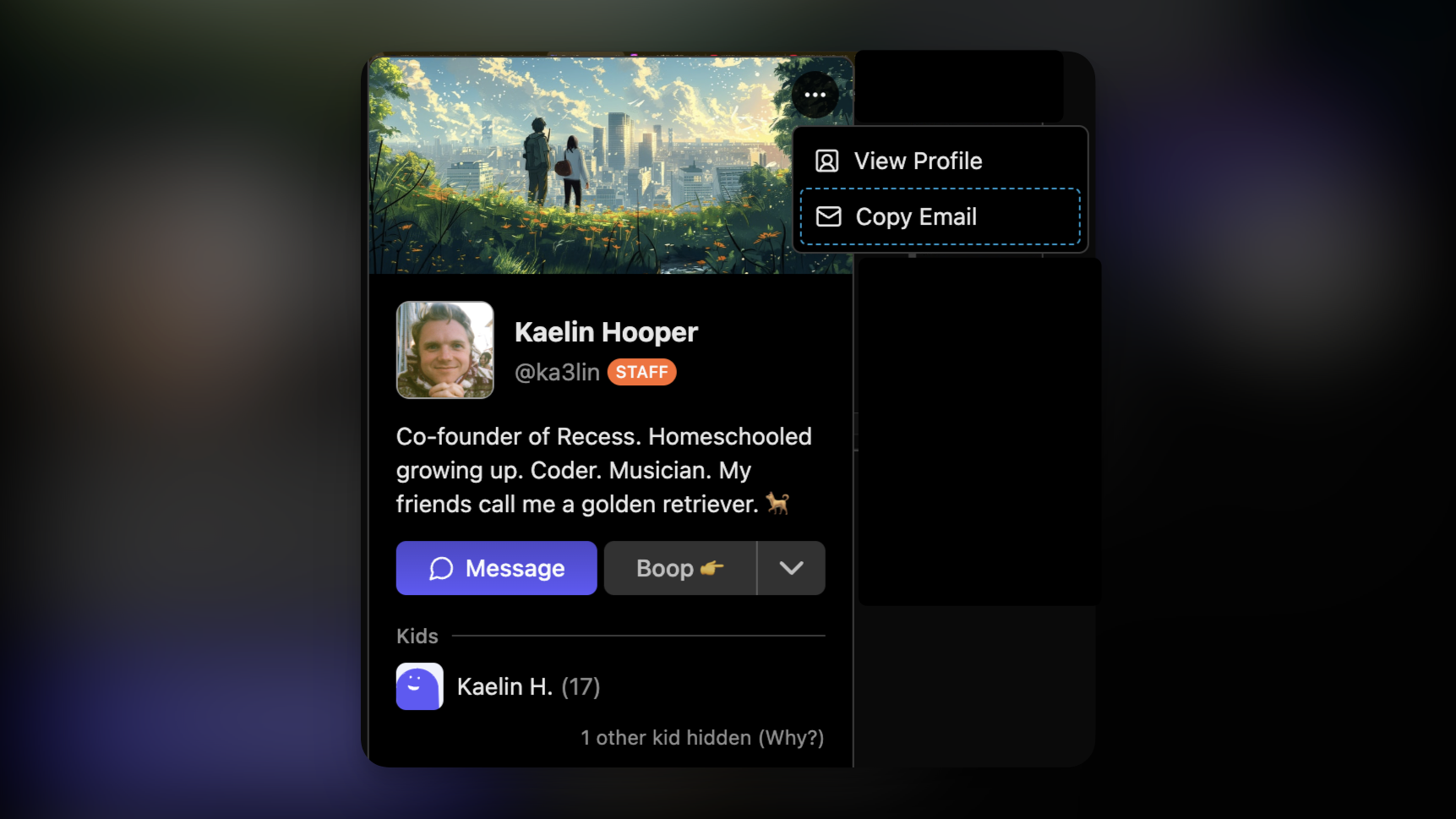
Additionally, you can now copy parents’ email addresses directly from the profile popover as well — as long as one of their kids is/was registered in your class.
Rooms in Cohort Channels
For courses hosted on Recess Rooms, you can now join the course room directly from the chat channel page!

Note that because course rooms do not require parent consent to join, these rooms will not start unless a guide is present in the room. Kids with consent to start rooms will see a message like this while you’re away.

Chat Improvements
We also improved lot of interfaces around chat this week, including typing indicators, a sleeker-looking input bar, and better member list sorting.

We’ll see you in chat!
February 4th, 2025

Finally, we’re launching our MOST requested feature — Kid Profiles!
We’re calling them Portfolios because we think profiles on Recess should be all about the things you create, and it should be something you can show off to your friends forever.
After talking to lots of kids and guides on Recess, it was clear that portfolios needed to support many different kinds of projects you’re working on—Writing short stories, Building game worlds, Coding apps, Making art, Publishing YouTube videos, and more.
So we collaborated with many of you over the last month to create what we think meets all of those needs.
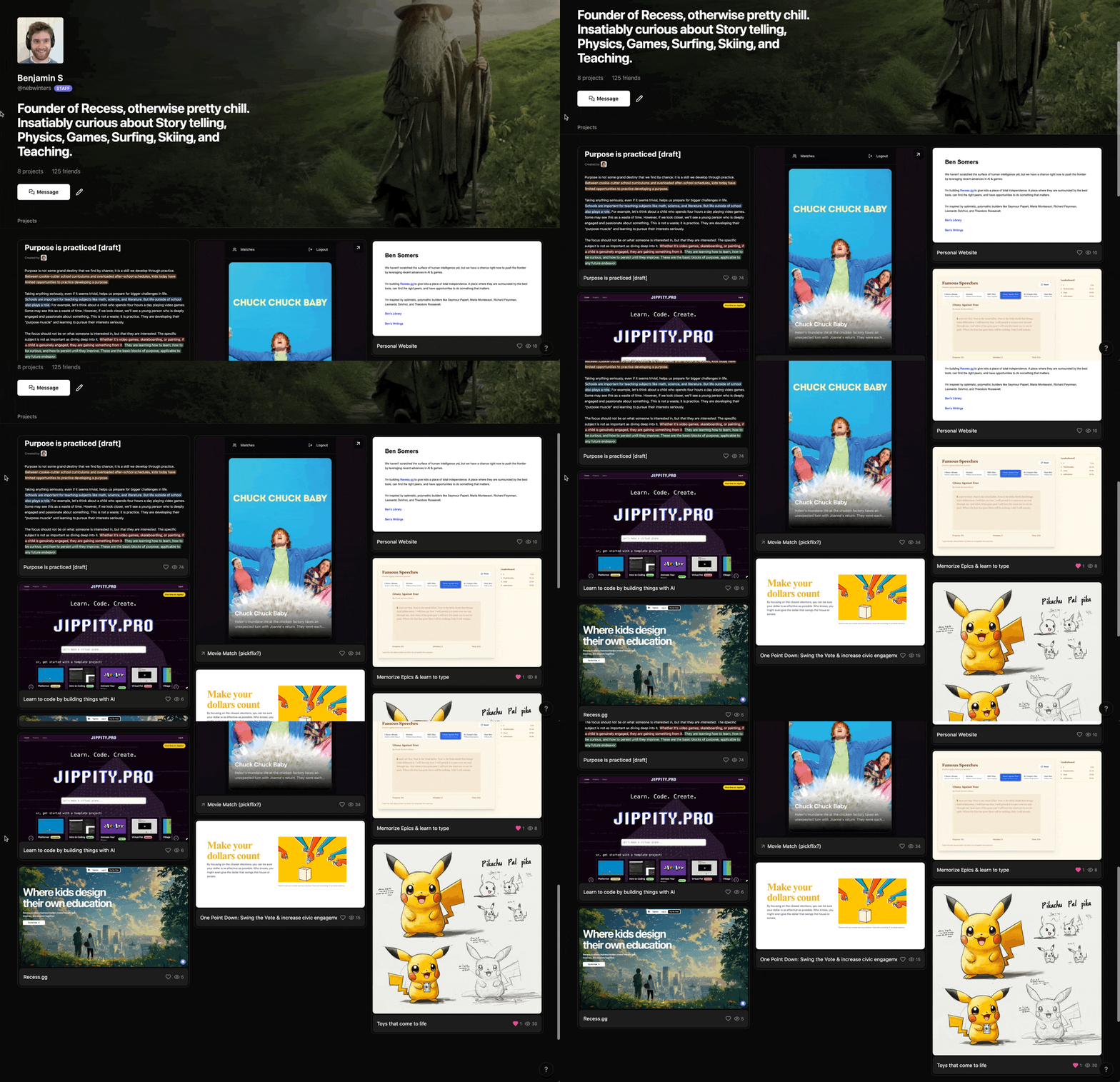
Portfolios are a place to showcase who you are and the things you make. You can create any number of projects you want and upload them.
Projects
Projects go on your portfolio. Each project is a powerful tool that you can use to show what you made. It could be as simple as uploading an image or writing a story about how you made it. And other people can give you kudos, too!

Editing projects are super easy. Just press the / key on any line to add content. You can add Images, Links, Code, Quotes, Headings, Highlighted text, and more.

All projects are private by default. If you want others to see them, you just click the Publish button. Also, if your project is an external link, like a Substack article you wrote, you can force everyone who clicks on it to go to that link instead.

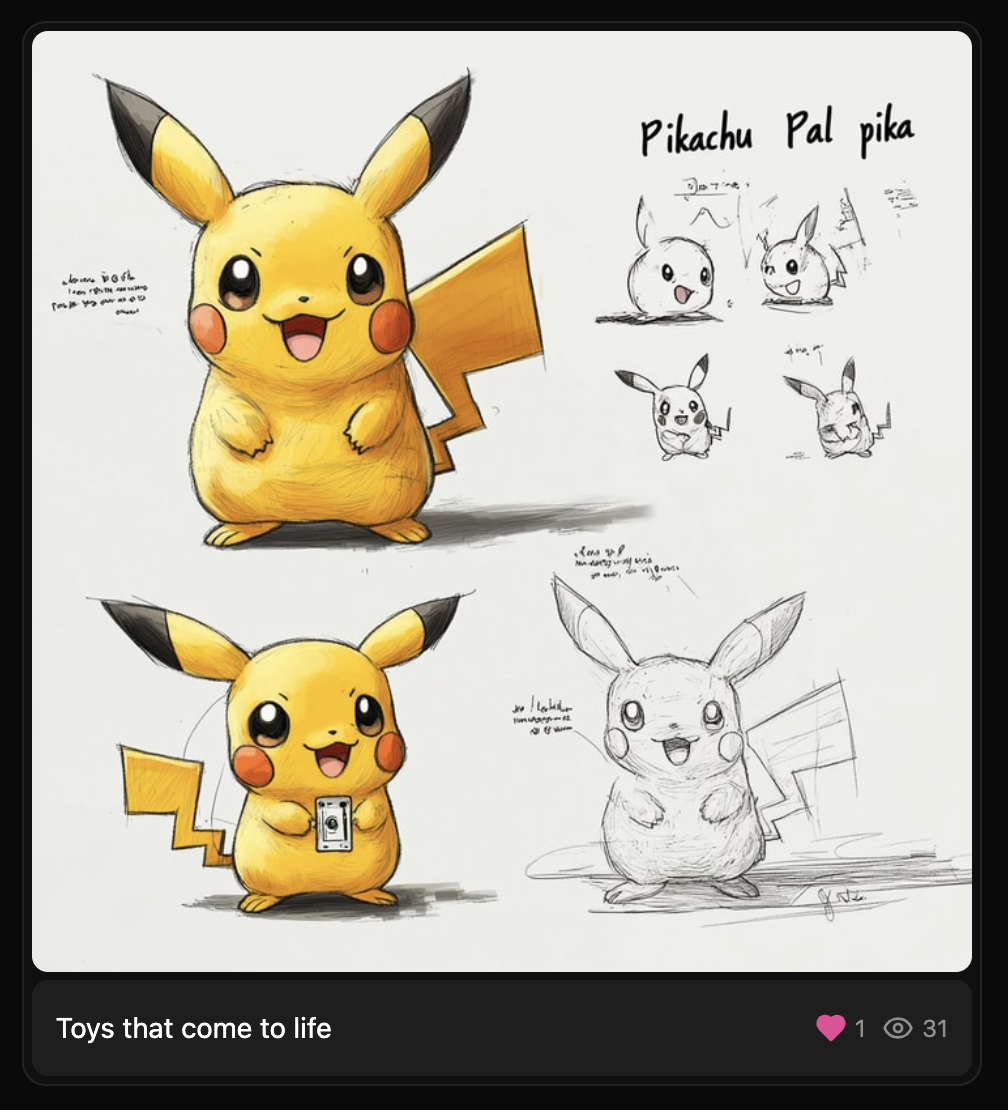
Published projects will show up on your portfolio like this. Be sure to give it a cool image!
Usernames
As part of this release, we’re also introducing usernames. Usernames give you a nice way of linking to your portfolio instead of an ugly long url with a bunch of random letters in it. For example, linking to your portfolio can look like this: https://recess.gg/@ka3lin
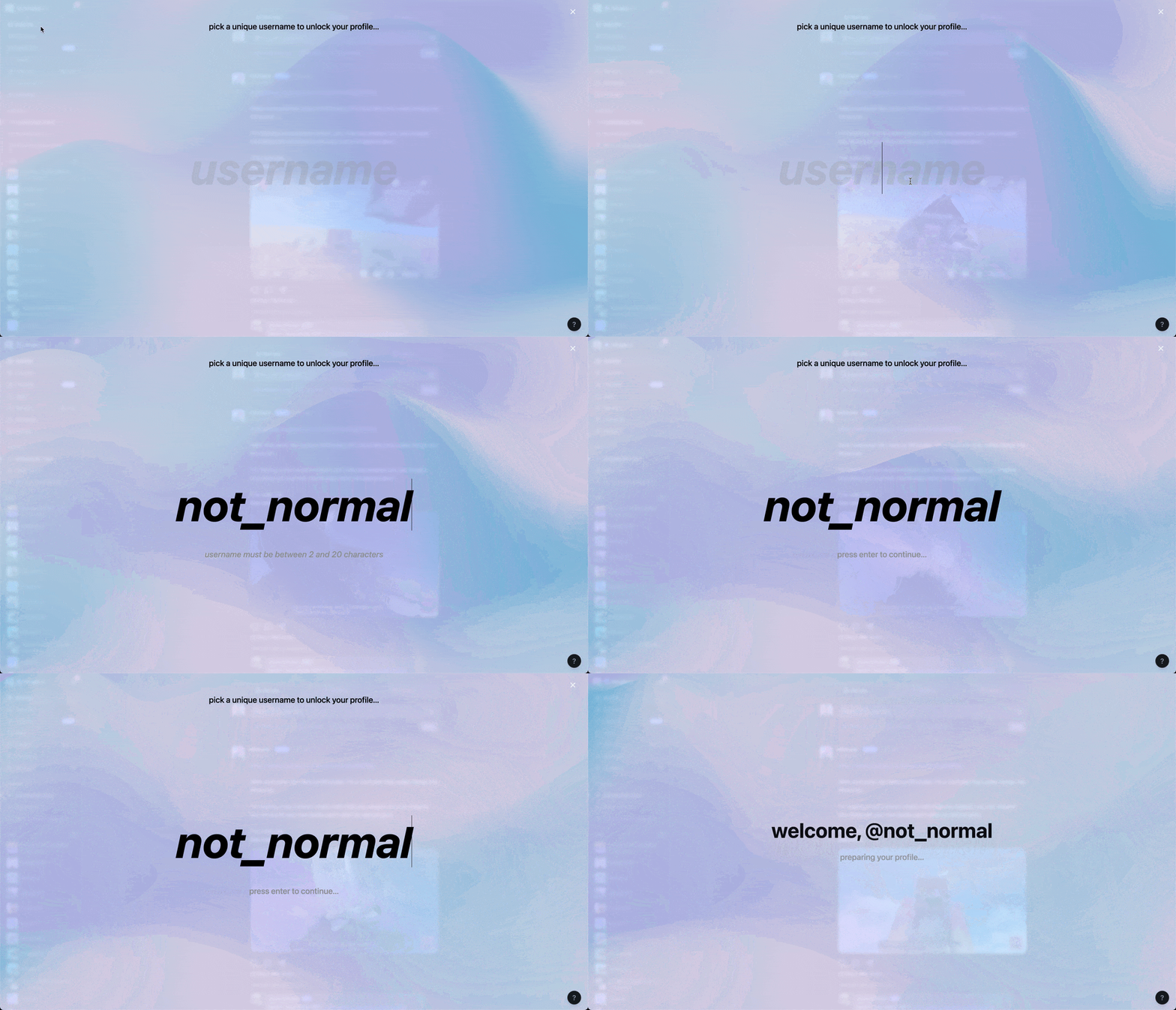
The first time you go to your portfolio, you’ll be asked to pick a username:
Project Gallery
There’s also a project gallery tab where you can see all the latest projects everyone across Recess has published. Use it to find others working on interesting stuff and collaborate with them, or use it to get inspired to make something of your own!


Shoutout to the early beta testers
HUGE shoutout to some of the early beta testers who were really active in giving feedback leading up to the first launch of Portfolios:
Theo P.
Isaiah F.
Gabriel R.
Nate P.
Claire H.
Matthew F.
January 22nd, 2025
Improved
For Teachers
For Kids
For Parents
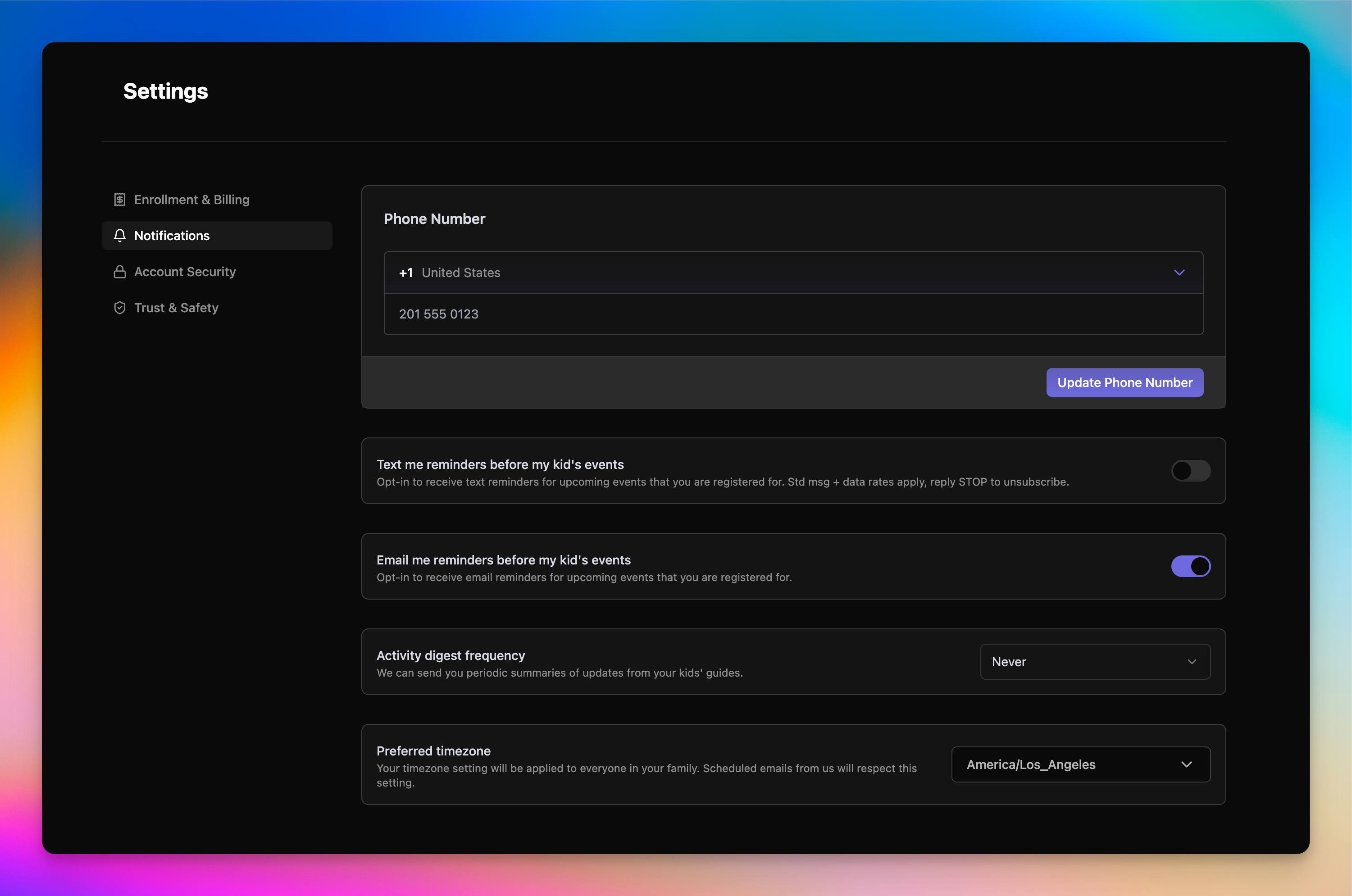
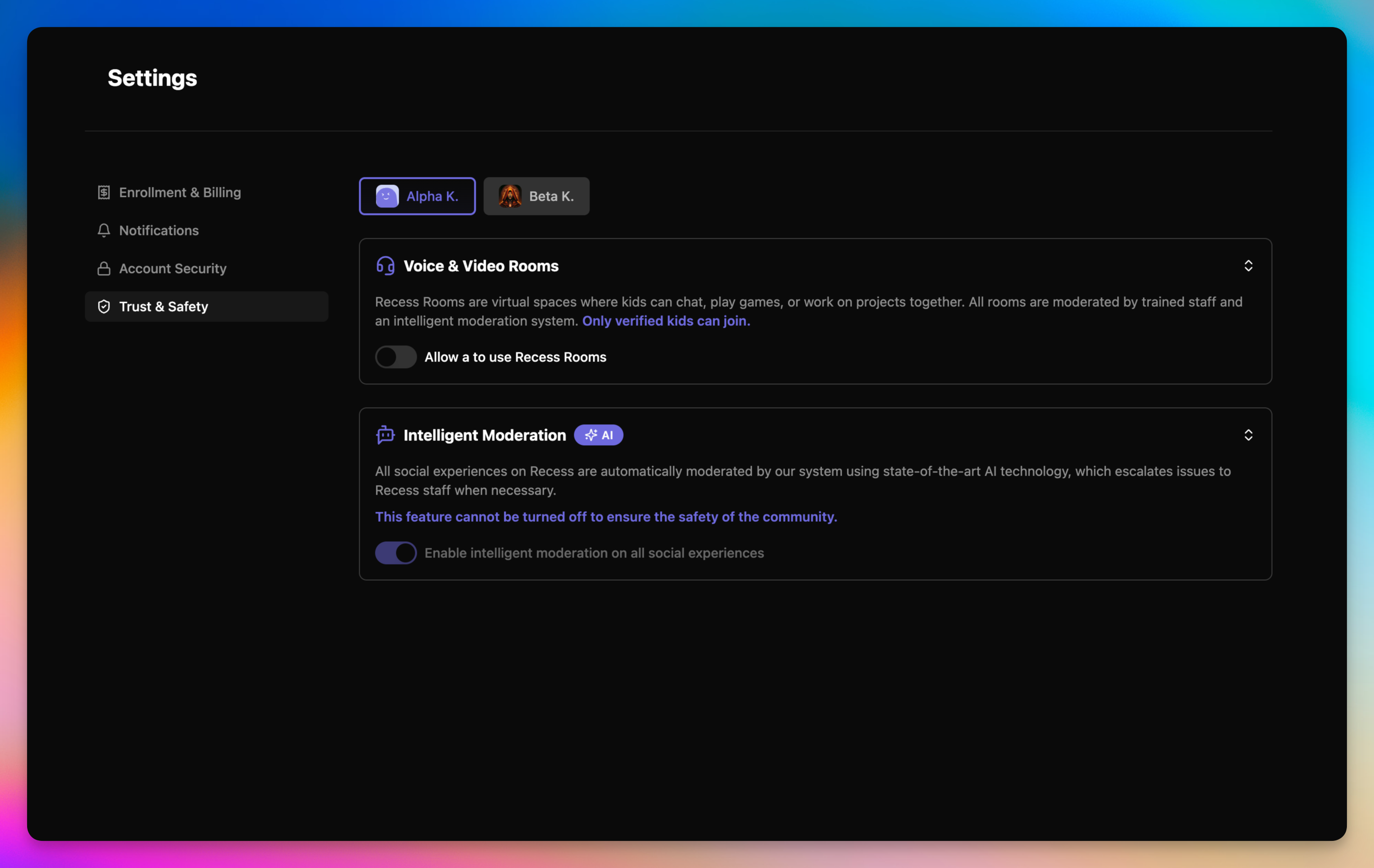
We’ve redesigned the settings screen with a clean sidebar, so it’s easier for you to find the toggles and boxes that you need.
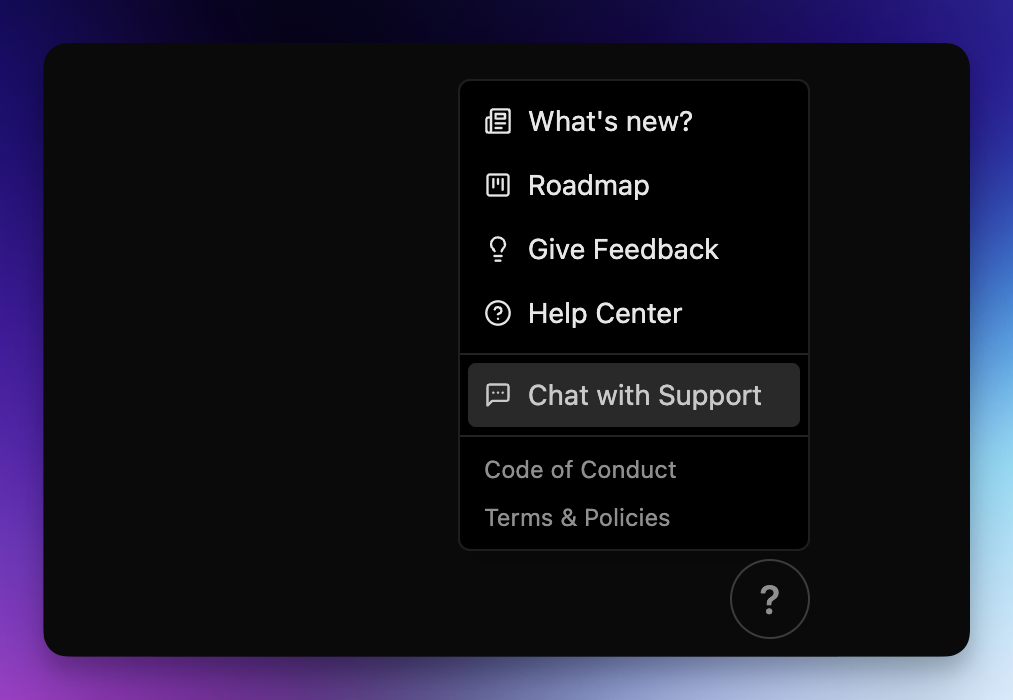
Need help? Email us at [email protected], or chat with support from the help menu on the bottom right.
January 10th, 2025
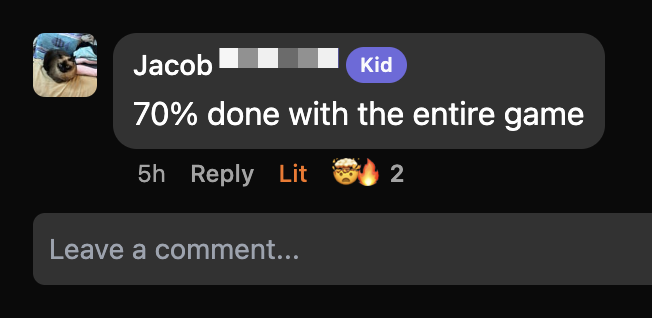
Finally 🔥🤯😂
React: You can now add reactions to comments on feed posts. Choose from a variety of expressive options.
See who reacted: View who has reacted to each comment.
How to Use
Go to the activity feed at recess.gg/activity and react to a comment to explore this feature firsthand.
January 9th, 2025
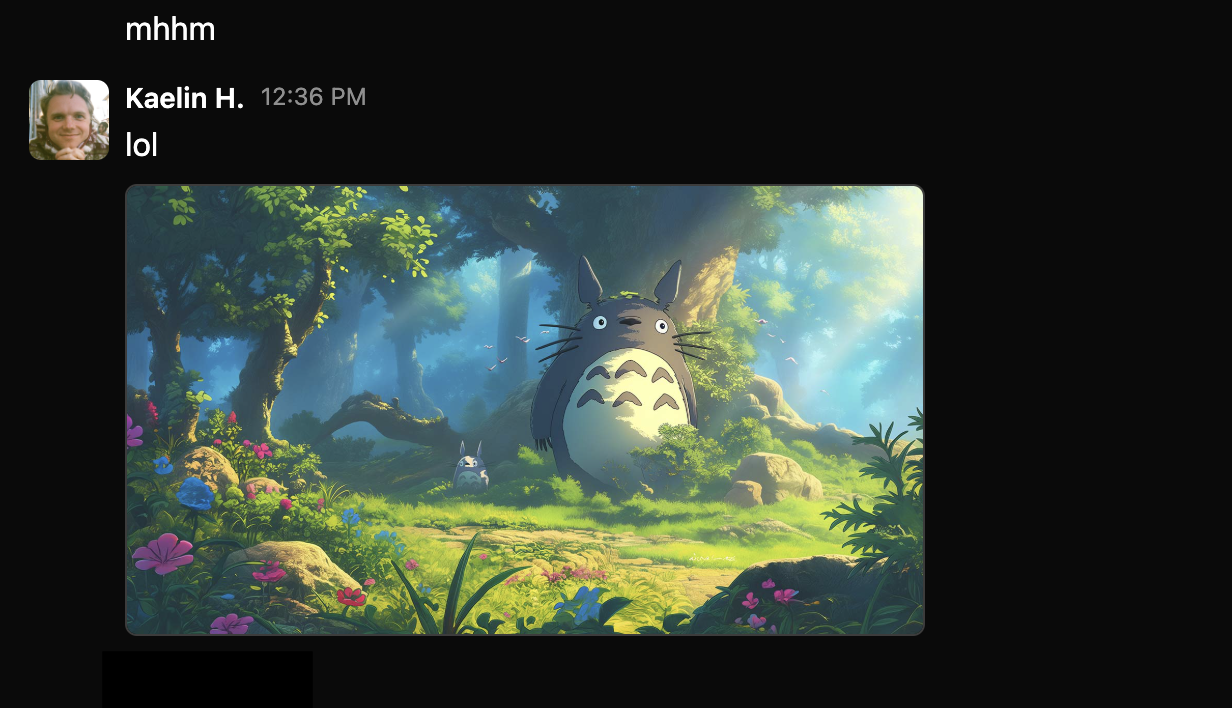
Finally, one of our most requested features—you can now upload images directly in chat.
There are three ways to upload:
Click to new upload button in the chat bar.
Copy an image and past it into the chat input.
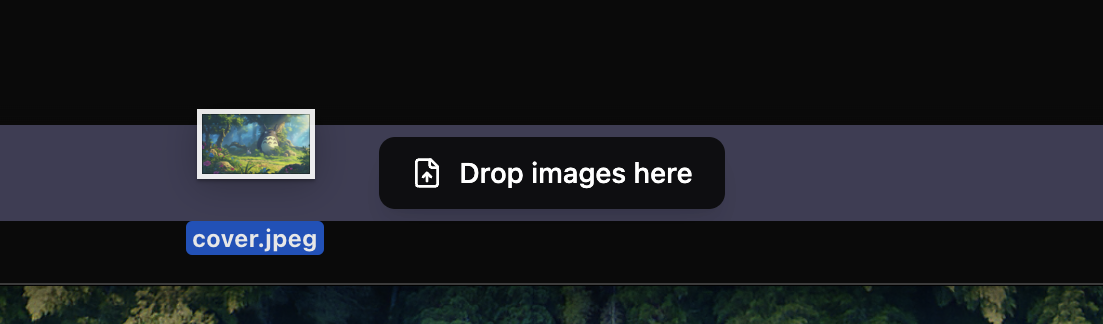
Drag-and-drop over the text input.
As a bonus, we also added drag-and-drop for image upload to both Chat and the Activity Feed (for guides).
Happy uploading. :)
December 7th, 2024
New
For Teachers
A while back, we launched Recess Rooms for chat channels. Rooms is an integrated video call experience on the Recess platform, allowing kids to spend time collaborating or play games in their own small groups.
Now, teachers can now choose to use Recess Rooms to host classes!
Rooms come with useful features for teachers too, like automatic session recordings, attendance tracking, whiteboard/media sharing, and other advanced moderation features.
Rooms will be the default hosting option for new offerings going forward.
Turning on Rooms for existing cohorts
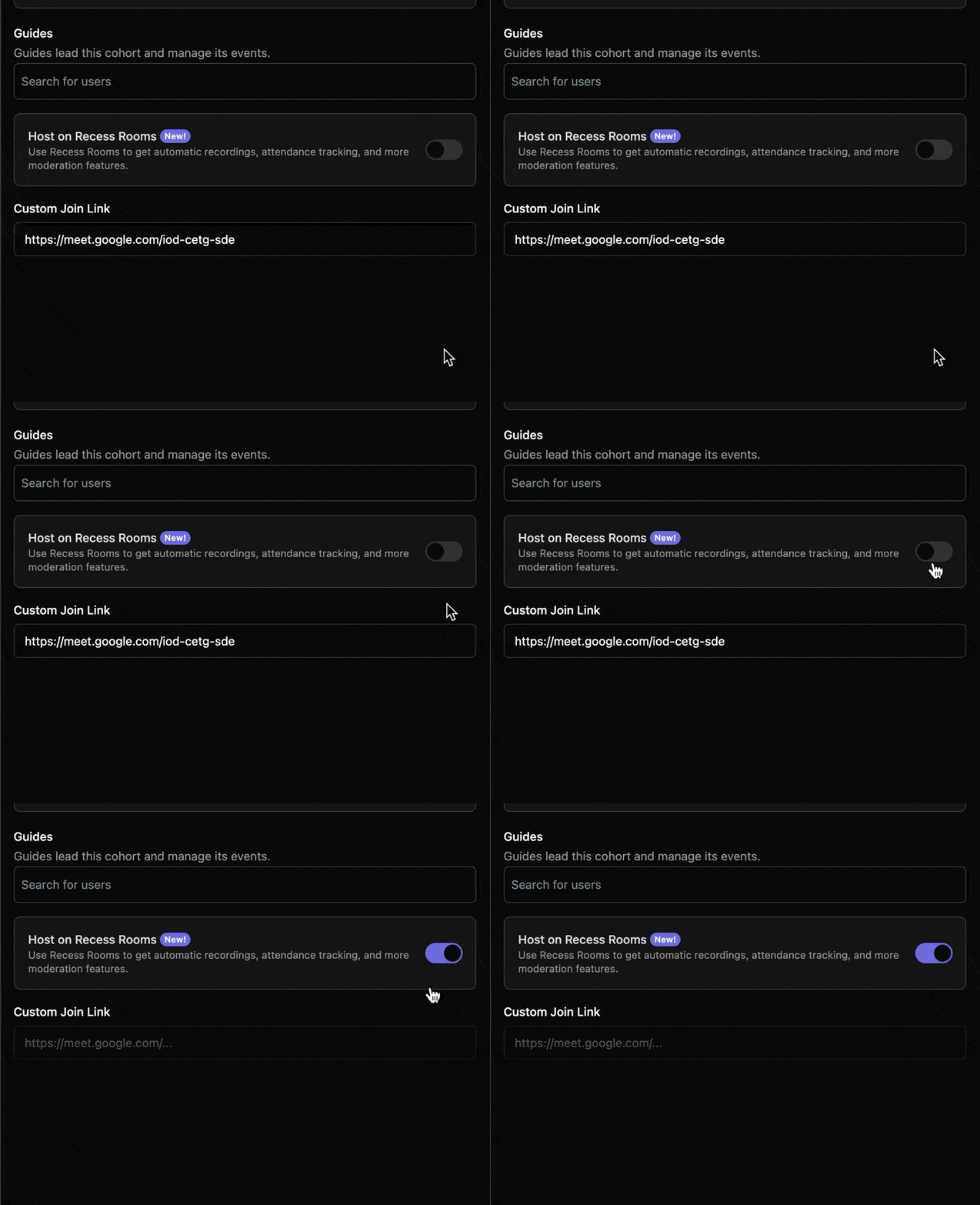
To enable Rooms for existing cohorts, go to the edit cohort page, and toggle on Host on Recess Rooms, then click Save. Your custom join link will be removed.
Joining classes hosted on Rooms
To join a class on Recess Rooms, click “Join Event” from either the schedule page or your course page during a scheduled session.
When the small window opens, grant it permissions for your camera and microphone, and drag it around or resize to your preference.

Access attendance & recordings
From the cohort admin view, click your course, then the cohort, then go to the Ended tab. Click on an ended event to see its data.
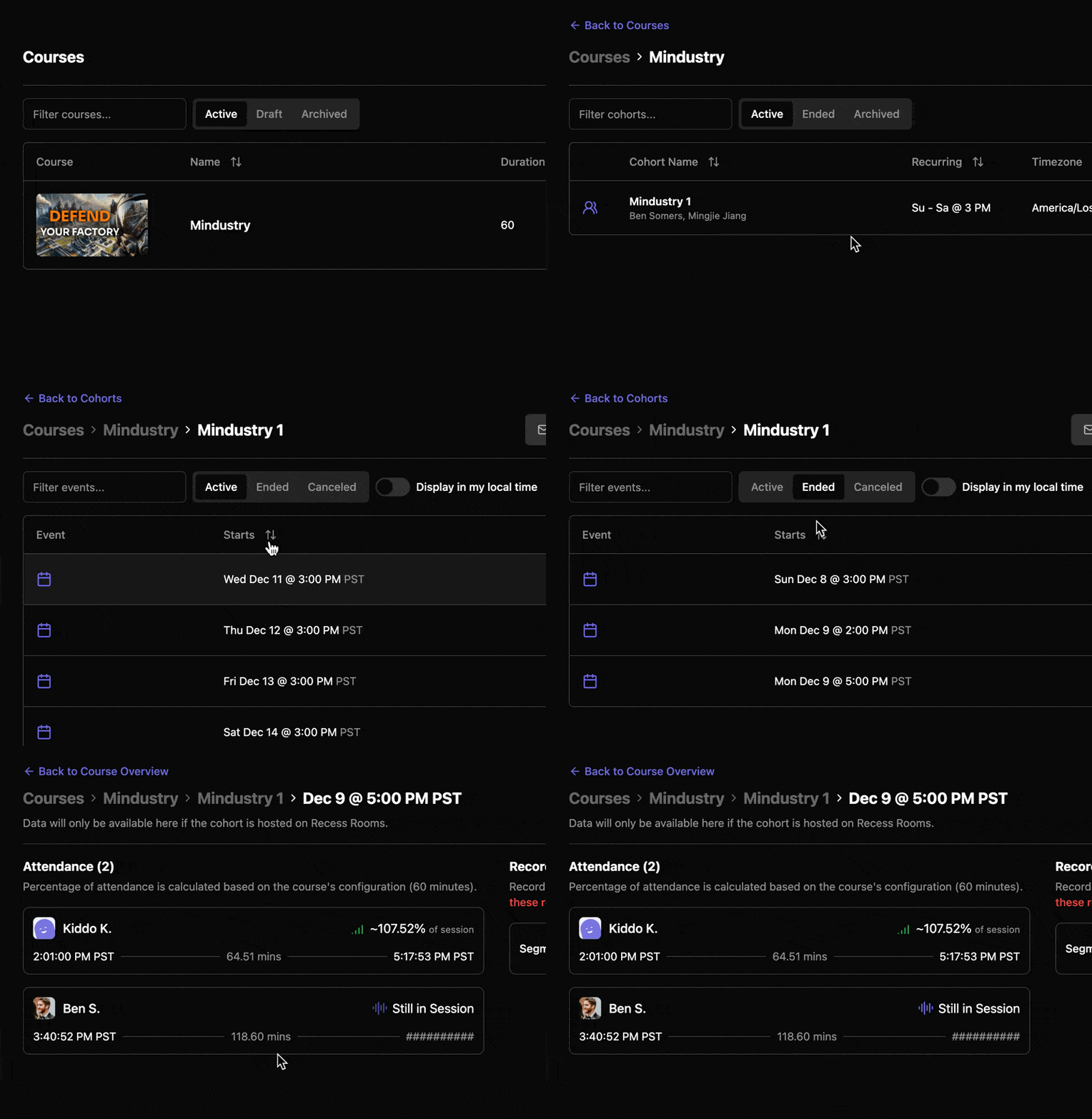
Attendance data and recordings will be made available shortly after each Rooms session ends (when everyone leaves).
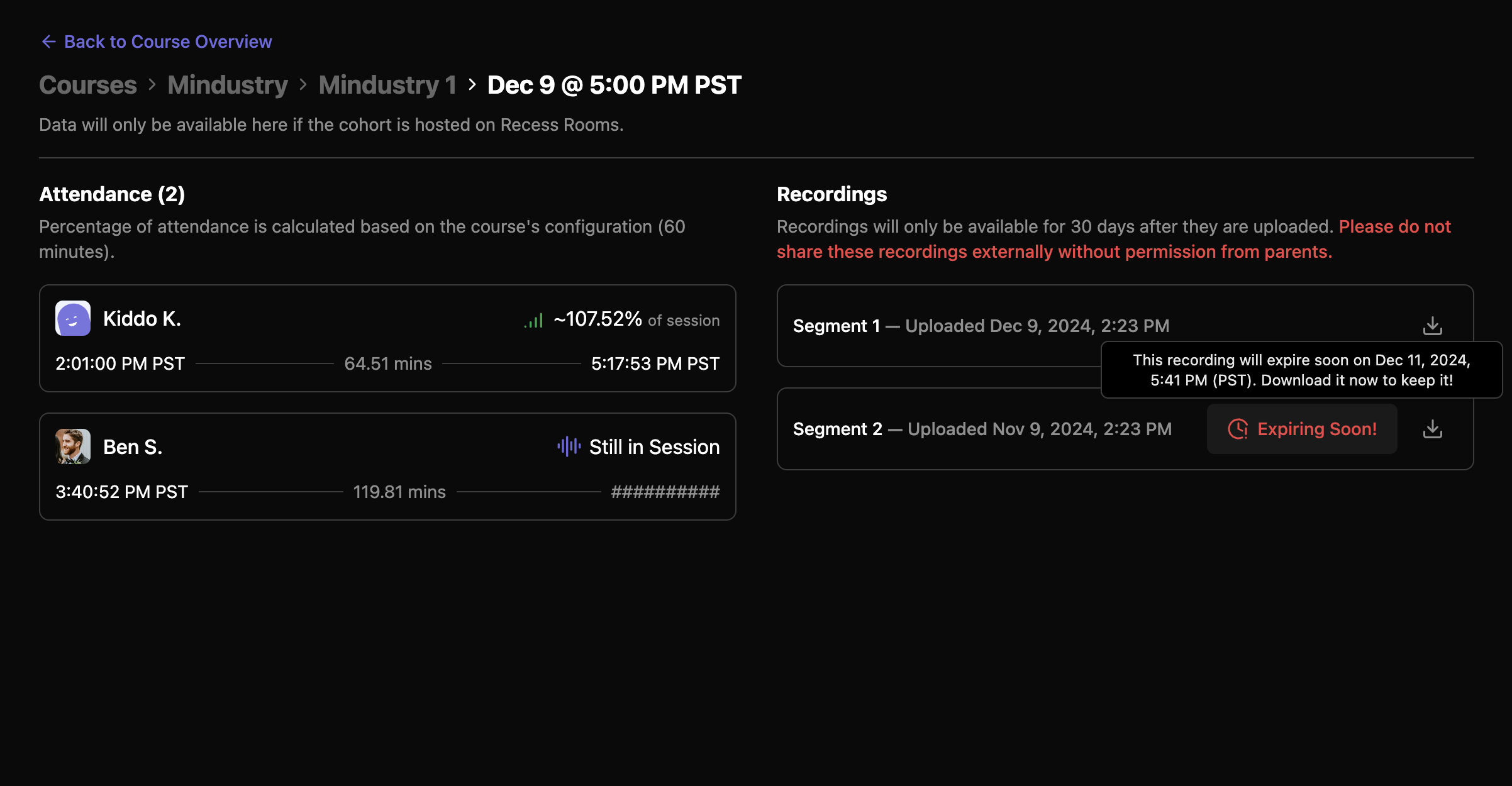
Recordings will be stored on Recess for 30 days before they are permanently removed. If you need to retain them for longer, please download them ahead of their expiration (and let us know why — we’re considering extending the availability period as well).
Due to privacy restrictions, please do not share session recordings outside of Recess without first gathering consent from parents.
Let us know what you think!
We hope you find these new tools useful! If you have any feedback, please let us know either by messaging us in Slack, or submitting a feature request.
December 2nd, 2024
New
For Teachers
For Kids
For Parents

You can finally reply to comments in the activity feed—one our most requested features!

You’ll get a notification when someone replies to your comment!

That’s it. It’s for everyone. Pretty simple. 🫡
Shoutout to @Shinga H. for submitting the original feature request. (and many others who had the idea before we launched this feedback board!)
November 27th, 2024
Improved
For Teachers
For Kids
Activity Feed
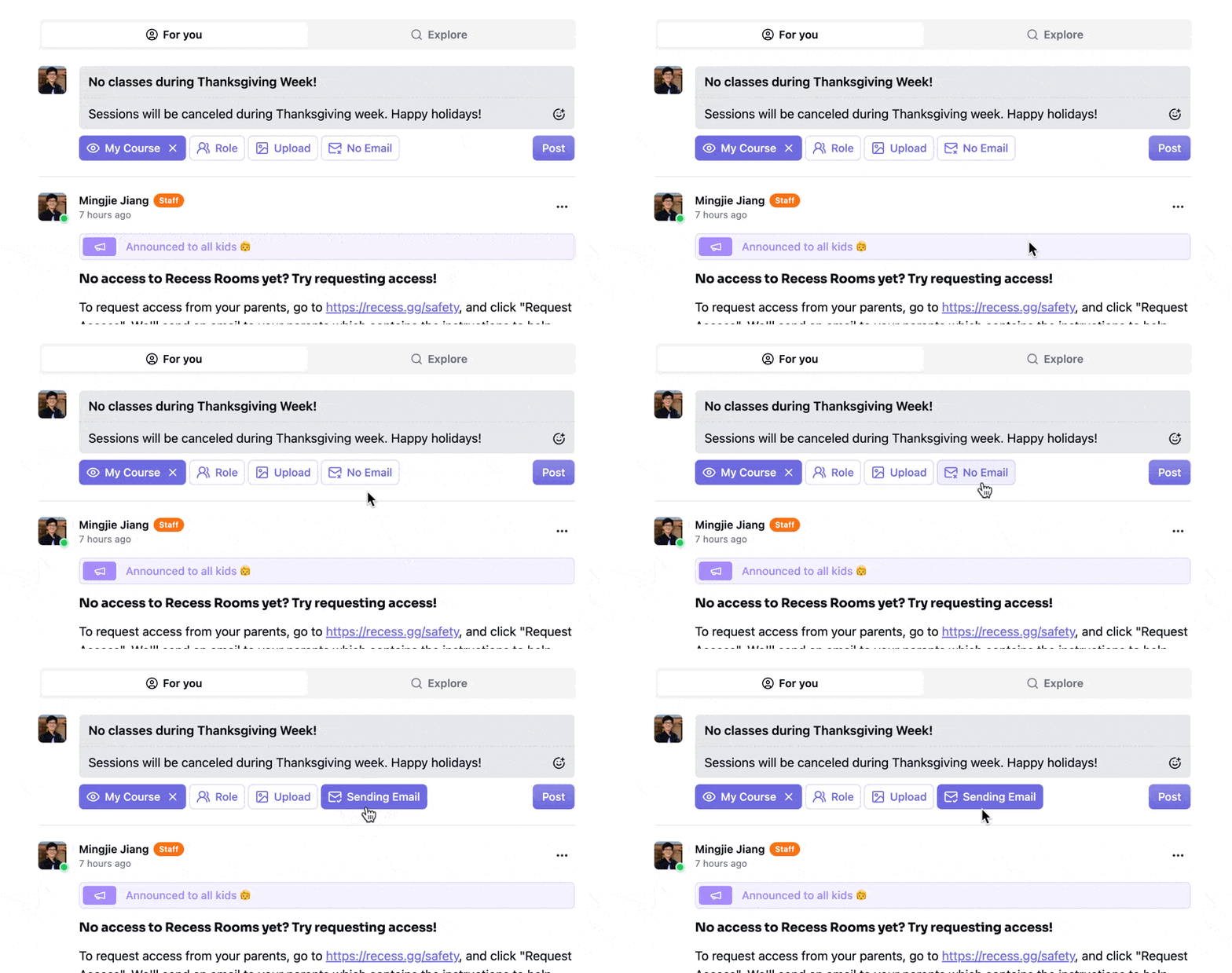
Guides can now choose to also send an email to families when creating a new activity feed post.
Rooms Safety
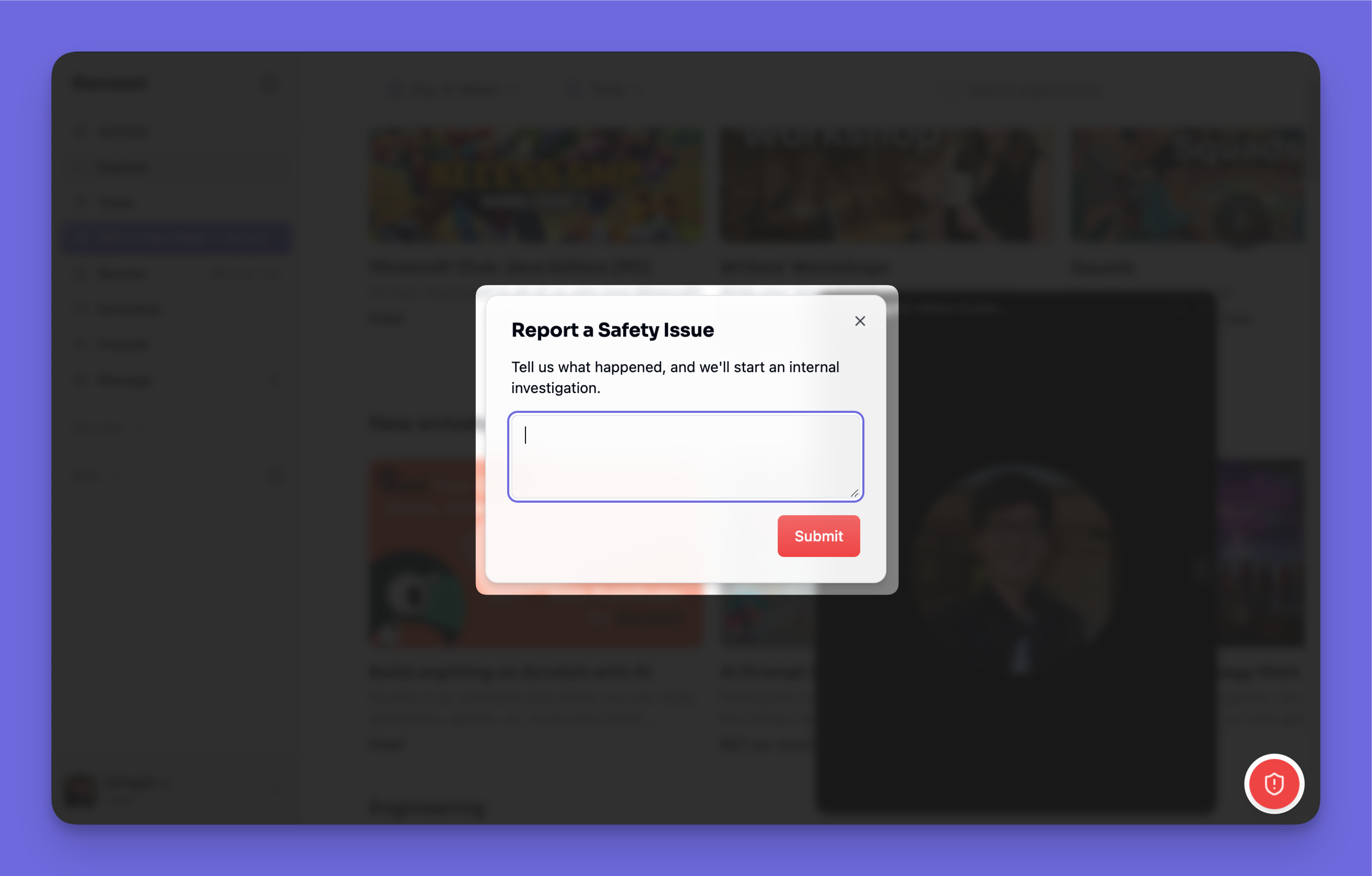
We’re making Rooms safer for everyone. During a Rooms session, participants can report a safety concern by clicking the red shield icon on the bottom right, and our moderation team will immediately be notified.
We will also attach the session recording to the report, so we have a better idea of what happened.
Kids can now request access to Rooms from the Safety page, and we’ll email parents with the next steps.

Help Center
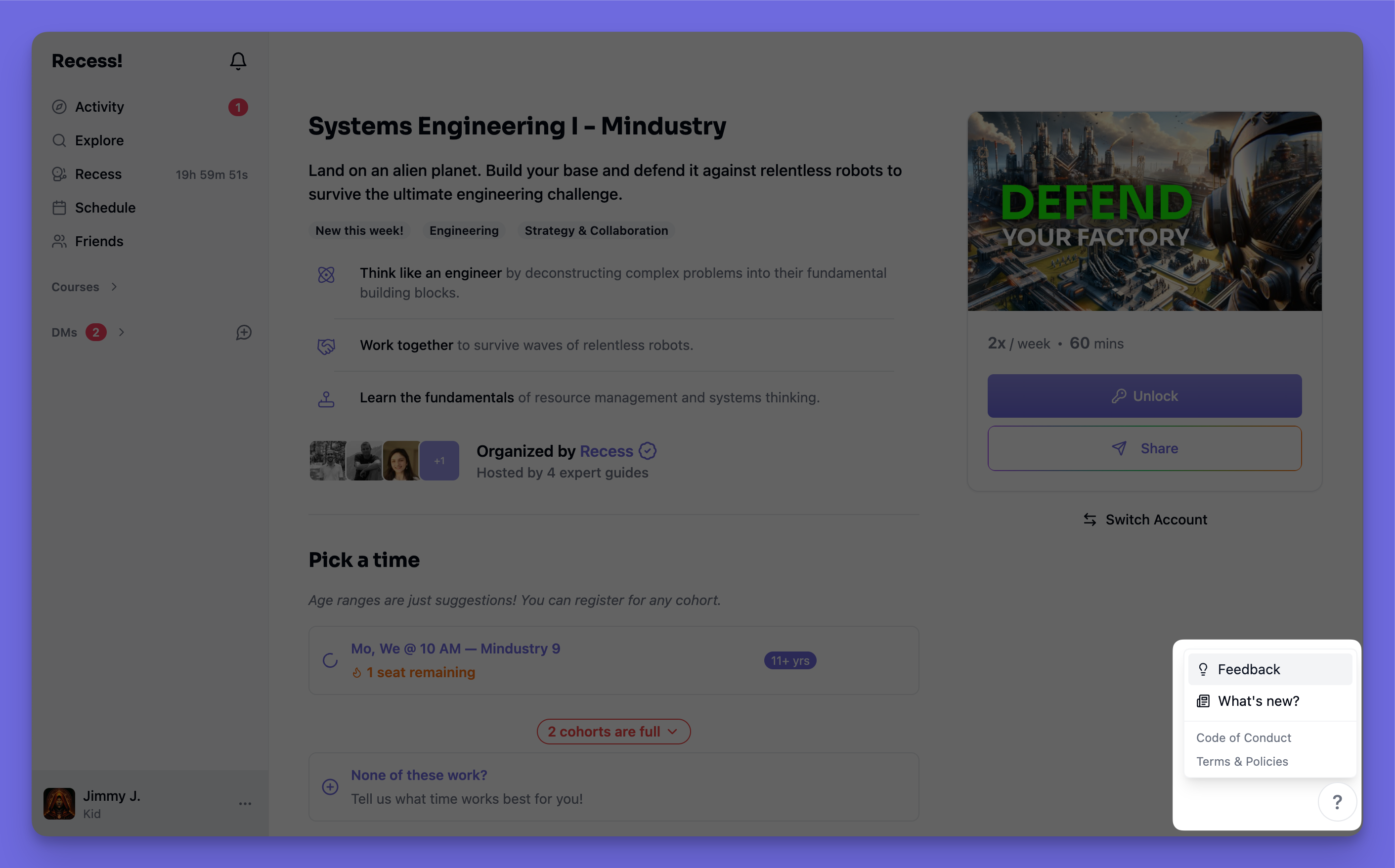
Got a feature suggestion or a bug report? You can now submit them in-app via the new “Help” button on the bottom right! Plus, you can read about latest product updates to Recess in the changelog section.
November 26th, 2024
New
For Teachers
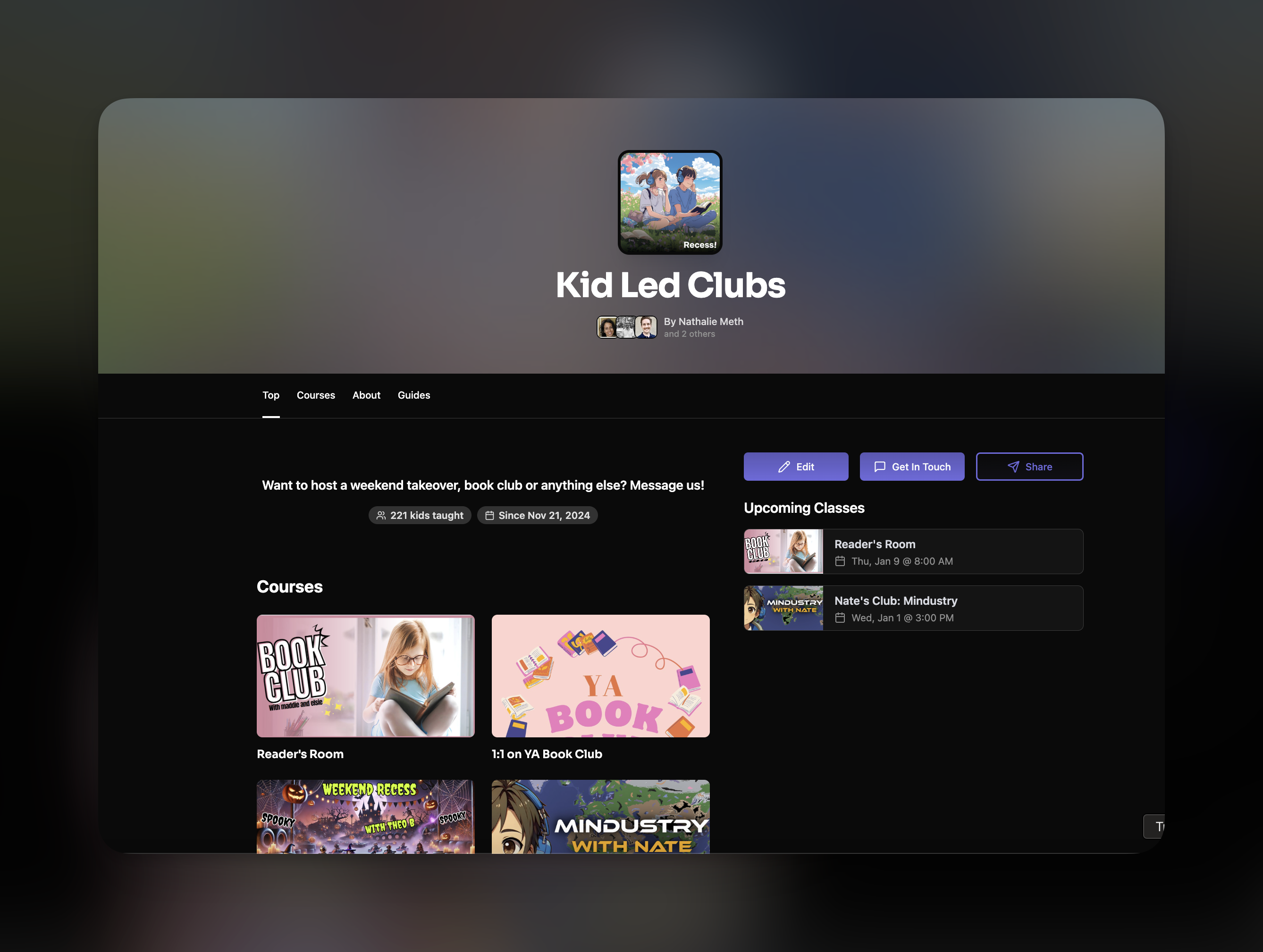
Introducing program pages - a new landing page for program founders to list all of their offerings in one place!
Features
Receive messages from prospective customers
Centralize your class listings
Easily shareable
Include a welcome video
How to Start
GUIDE users can create a program from the profile switcher:
You'll be prompted to enter basic info before being redirected to complete the program profile page (note - you can't change the program name after creation yourself - contact [email protected] for help):
You should add a profile picture, video (optional) and longer form "About" section for your program:
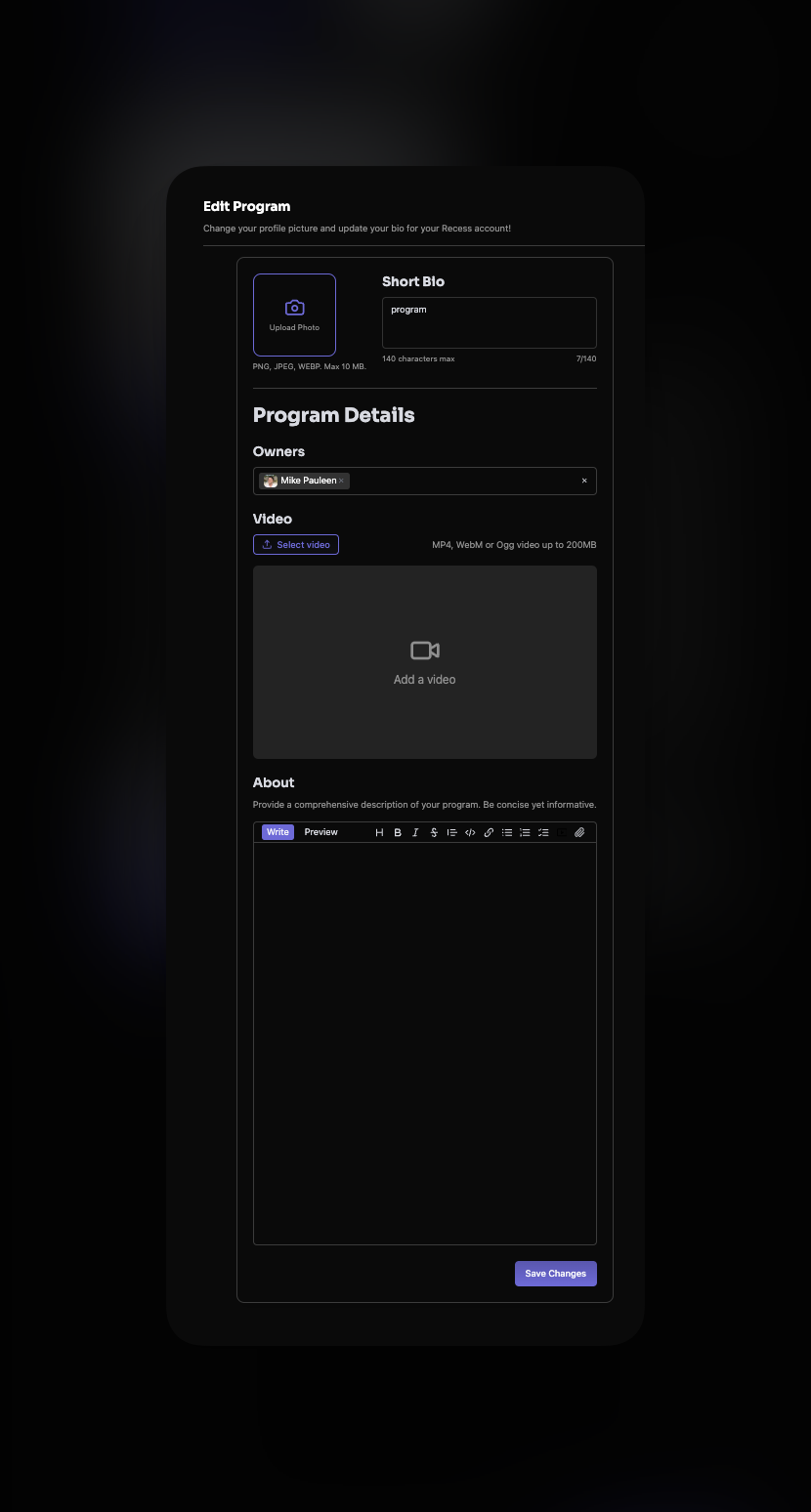
Note: Adding Owners You can add additional owners to the program page. Owners are able to log into the program, edit its profile, and access all messages sent to the program. Program owners can access and edit all courses under the program profile.
Add Courses
Existing Courses If you already created courses under your guide account, you can now transfer them to your Program from the course editor by changing the Owner field to the Program.
New Courses Programs can create courses from the left side nav bar under the Manage Drop Down
November 20th, 2024
New
For Kids
Introducing the notifications bell—your hub for important updates!

Get notified when:
Someone comments on your post (or one for you)
A post is made to you or your classmates
A new course request is created
Bonus features:
Too many notifications? -> Mark them all as read with ✔︎
Want to revisit something later? -> Mark it as unread with 👁️
This is just the beginning—more notification types are coming soon! Let us know what you’d like to see.